
How to Make a Christmas List Online (With Links)
A Christmas list in a notes app or a family chat gets lost and doubled. An online list with links is easier: each gift has a photo, price and link, everyone gets the same page, and people can reserve what they're buying. Here's how to make one in about five minutes with Onelist, with screenshots of every step. The same steps work for a birthday, wedding or baby list.
Prefer to start right away? Open the free Christmas list maker.
How to make a Christmas list online: the short version
- Log in with your name and email (no password).
- Create a list and set the event date to December 25.
- Paste a link for each gift from any store.
- Check the list: every gift has a photo, price and priority.
- Share one link by WhatsApp, Telegram, Facebook or Copy link.
- Family reserves gifts without an account; taken gifts turn green on your list, without names.
Step 1: Sign up for a free online wishlist (no password)
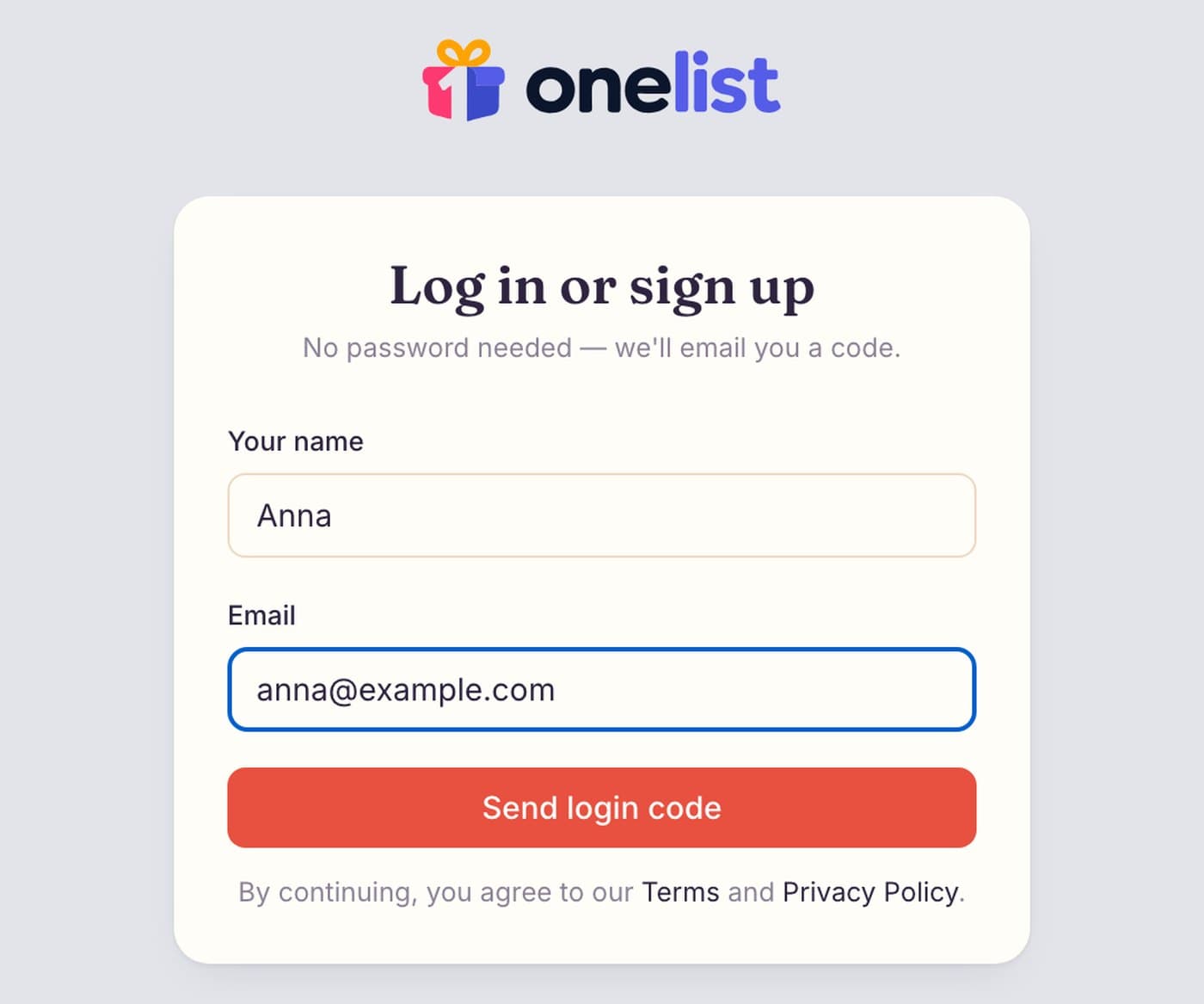
Go to onelist.gifts/login, type your name and email and press Send login code. We email you a short code; type it in and you're in. There's no password to remember, and the same screen works for logging in again later.
Your family doesn't need to do any of this: they open your link and reserve a gift without an account.
Step 2: Create your Christmas list and set the date
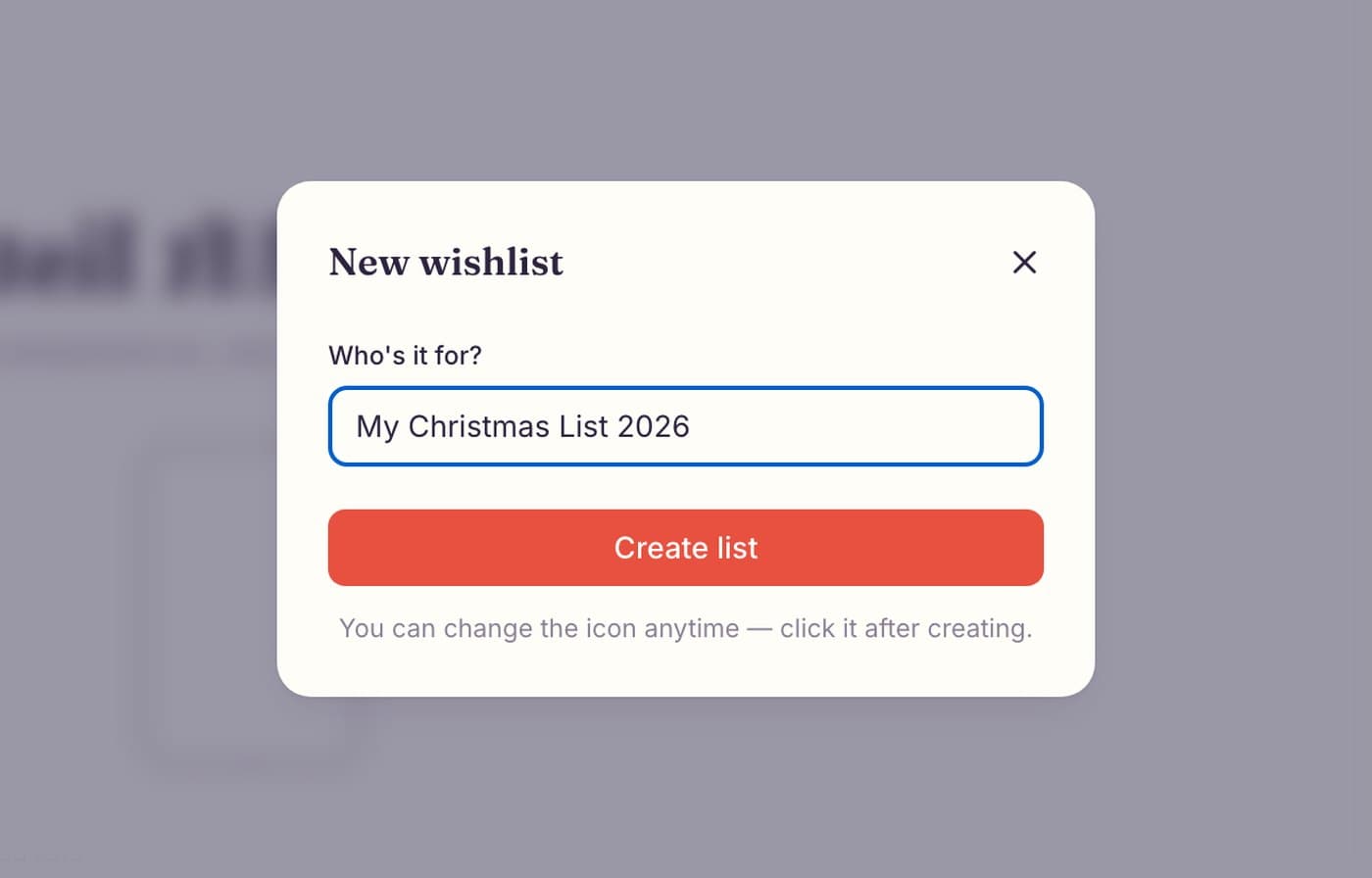
Press New list, type a name such as “My Christmas List 2026” and press Create list. Click the icon next to the title to pick a Christmas one.
Then use Add event date under the title and choose December 25. The date matters later: once it has passed, you can see who gave what, and gifts nobody reserved can be moved to a new list.
Step 3: Add gifts to your list with links from any store
Find something you want on any store's website (Amazon, Target, Etsy, a small shop), copy the link from the address bar and paste it into the box that says Paste a product link from any store. Press Add and Onelist picks up the photo, name and price. Repeat for every gift.
If a store doesn't let us fetch the photo, you'll get a prompt to add your own in a few seconds. And for things without a link (cash, homemade cookies, a class), use Or add a gift without a link.
Click any gift to mark how much you want it: Low, Medium or High priority. Not sure what to add? Our Christmas list ideas have 40 things worth asking for.

Step 4: Check your Christmas list
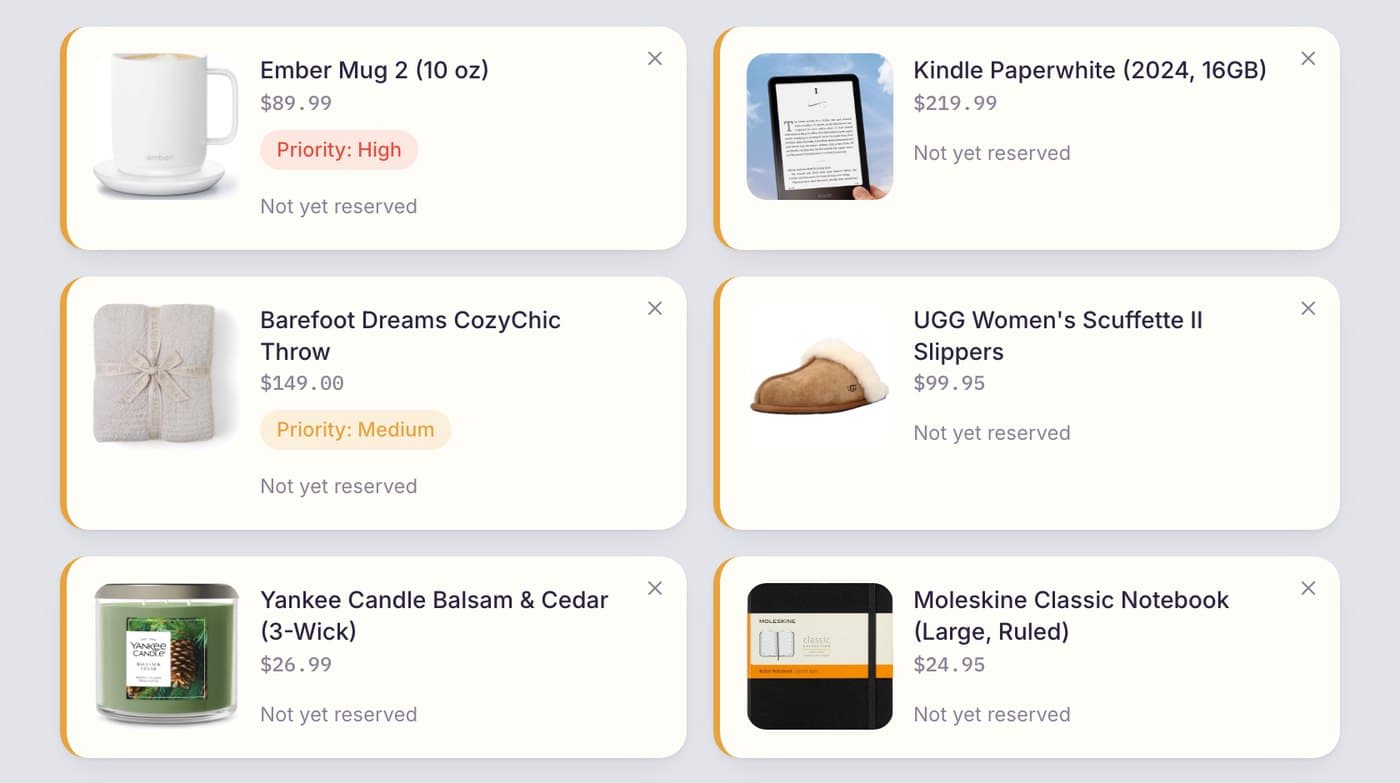
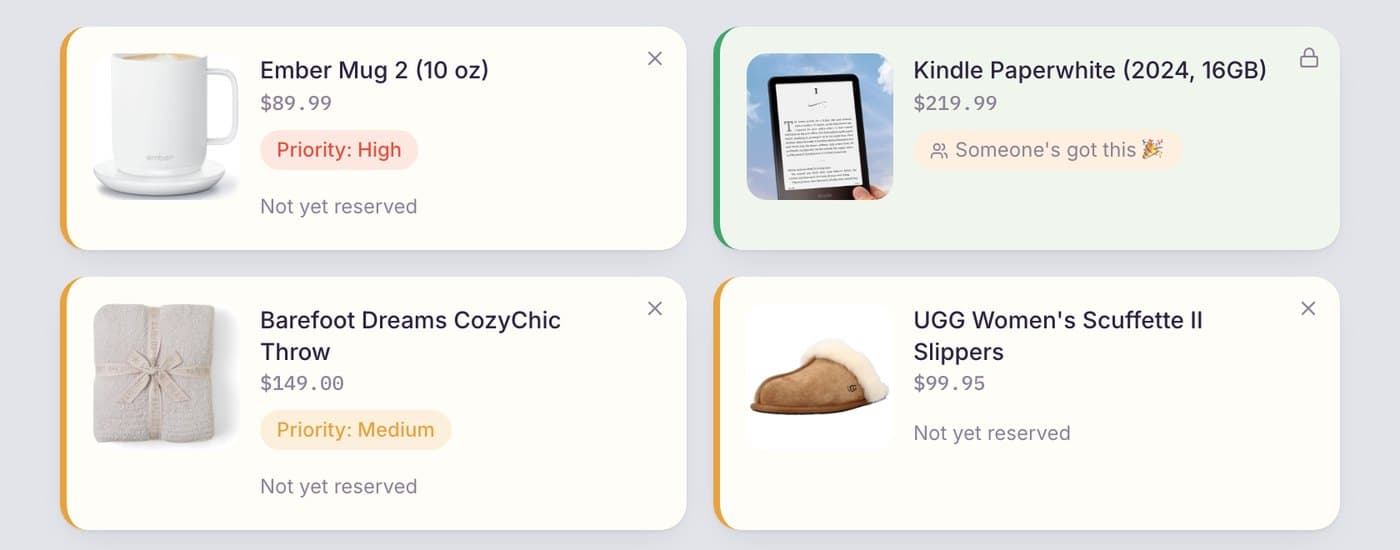
Every gift is a card with a photo, price and priority. Right now every card says Not yet reserved, because nobody has your link yet. Remove a gift with the cross in the corner of its card, or click it to change the priority.
Want to see what your family will see? Press Preview as guest above the list.
Step 5: Share your Christmas list link with family
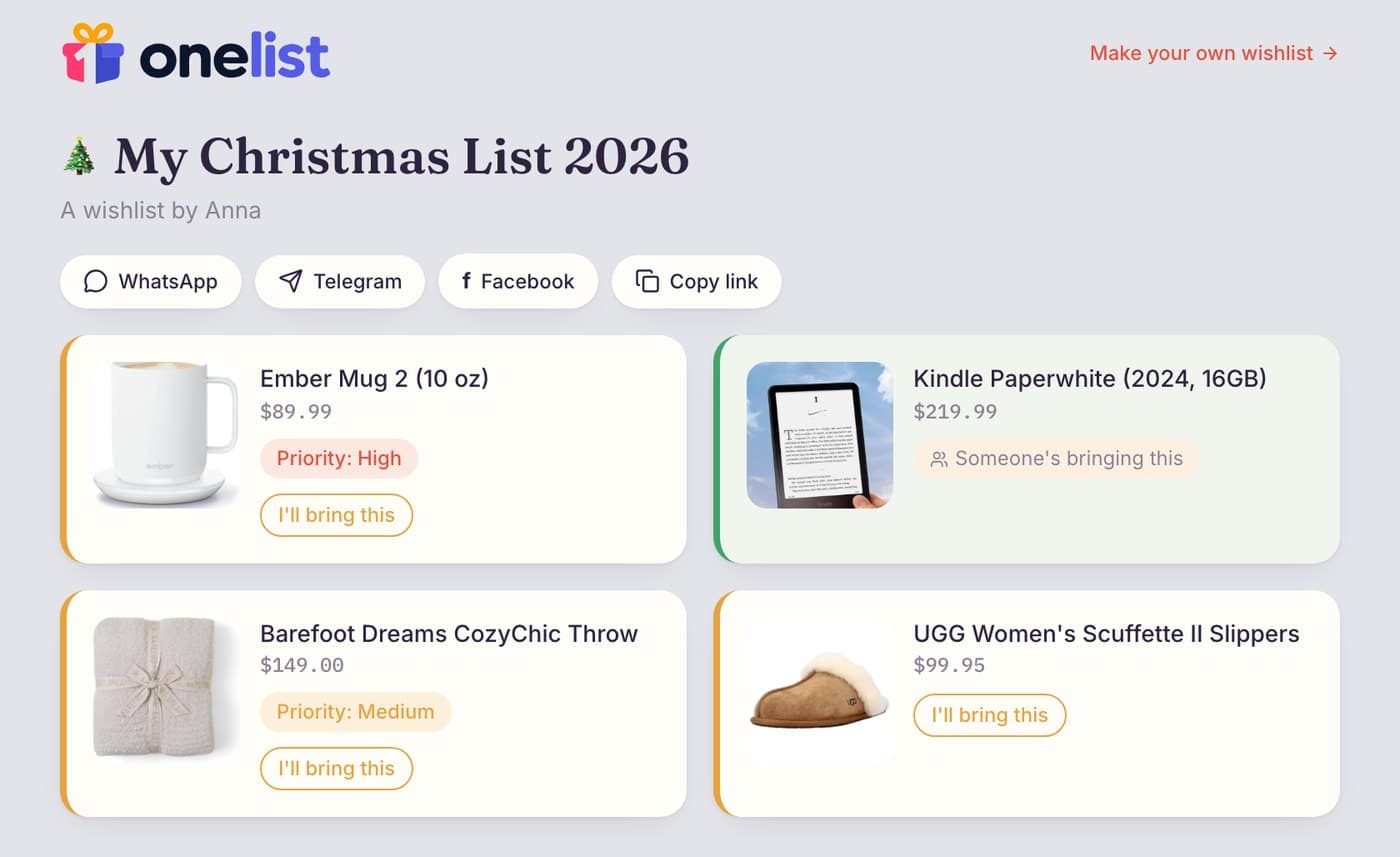
Under the title, the row of buttons does the sharing: WhatsApp, Telegram, Facebook or Copy link to paste it into a text, an email or the family group chat. It's the same link for everyone, and it stays the same when you add or remove gifts.
Planning the list with a partner? Share list invites someone by email to co-edit it, so they can add and remove gifts too. Send the link early in November, before people start shopping.

Step 6: Let family reserve gifts so nobody buys the same one
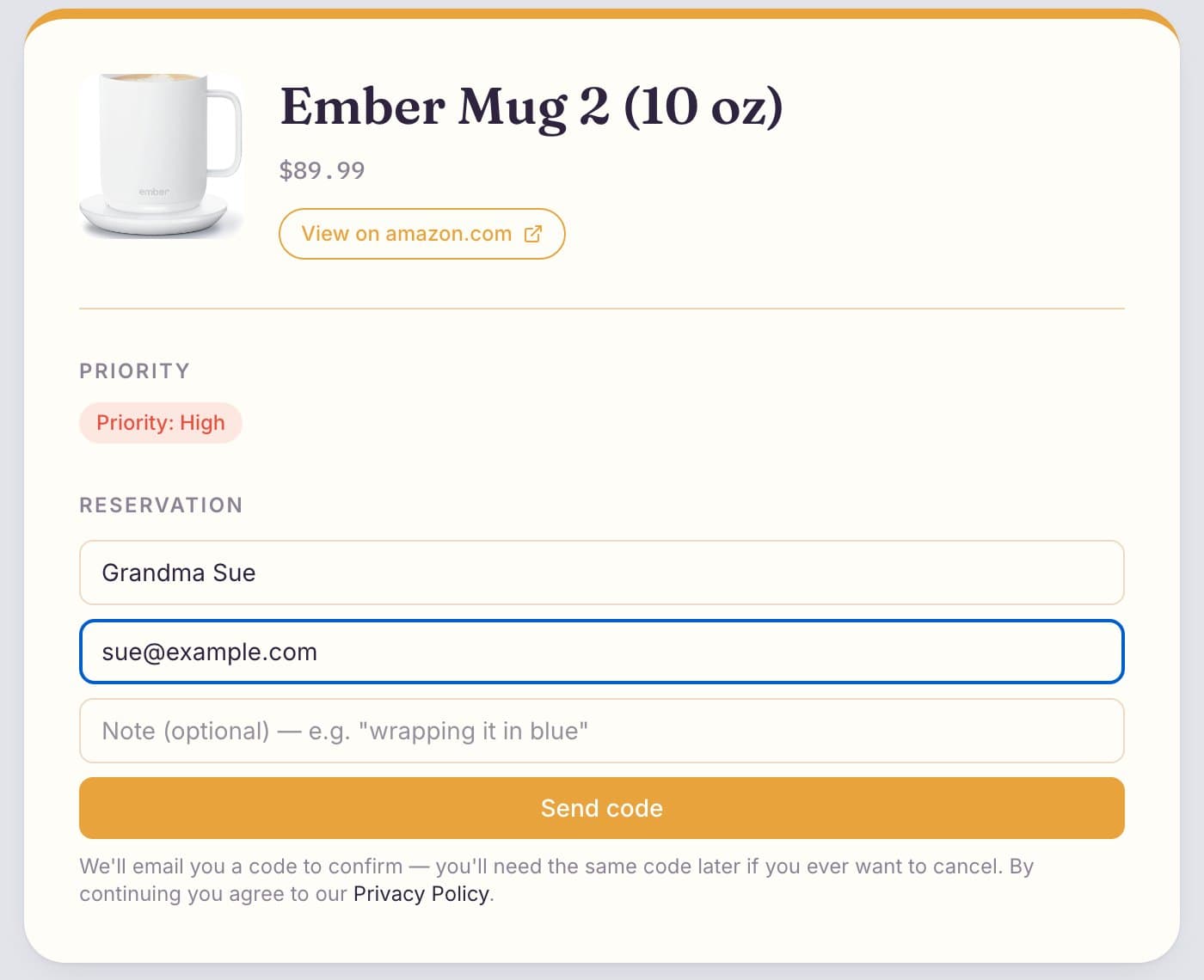
Your link opens a page with your gifts. A guest clicks a gift, opens its page and presses I'll bring this gift. Once your link is out, taken gifts say Someone's bringing this for everyone else, so two people never buy the same thing.
To reserve, the guest types their name and email and presses Send code. We email a code to confirm it, and the gift is theirs. They can add a note, like “wrapping it in blue”.
On your side that gift turns green and says Someone's got this 🎉. You can see that it's taken, but not who by, so you stay surprised. A reserved gift can't be removed by accident.
How to make an online wishlist for any occasion
Nothing in these steps is specific to Christmas. For any online wishlist, name the list after the occasion, set its date, paste your links and share the link. If you want a page built around the occasion, there's one for each:
Tips for a Christmas list people will actually use
- Mix price points. A few things under $25, some in the $50–100 range and one big gift family can chip in on, so everyone can find something that fits their budget.
- Mark your top picks. Set High priority on the one or two you want most. It saves the giver from guessing between ten similar things.
- Pick the exact one. Paste the link to the exact color, size and model. A link to "a water bottle" gets you a random one.
- Keep it updated. If you buy something yourself, remove it from the list, so nobody reserves a gift you no longer need.
More on each of these, plus gifts that aren't things and when to send the list: how to make a good wishlist.
Ready to make your Christmas list?
Create a free Onelist, paste your first gift link and share one link with your family. It takes about five minutes.
Start your Christmas listHow a wishlist from any store worksQuestions about making a Christmas list online
Create a free Onelist account (name and email, no password), make a new list, paste links to the gifts you want from any store and share the one link with your family. Onelist is free for you and for the people who reserve gifts.
No. They open your link, pick a gift and reserve it with a name and an email address. We email them a code to confirm the reservation, and they'll need the same code if they ever want to cancel.
Yes. Paste the link to the product from any store. Onelist picks up the photo, name and price when the store allows it; if it doesn't, you can add your own photo. You can also add gifts without a link, like cash or a homemade gift.
Not until the event date has passed. Until then you only see that a gift is taken, so you stay surprised. After the date, the names appear.
Yes. Press Share list and invite them by email. They can add, edit and remove gifts, just like you.
After the event date, Onelist offers to move the gifts nobody reserved into a new list, for example your birthday list. Reserved gifts stay where they are.
Yes. A wishlist works the same for any occasion. Name the list for the occasion and add its date, then follow the same six steps.